
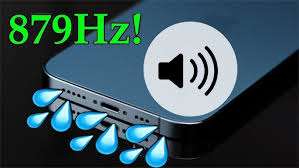
Fix my speaker—this is a common plea among audio enthusiasts and casual listeners alike when sound issues arise. Whether you’re jamming to your favorite tunes, watching a thrilling movie, or engaging in an immersive gaming experience, a malfunctioning speaker can significantly disrupt your enjoyment. Understanding the underlying causes of speaker problems is crucial, as it can help you address the issue effectively and avoid unnecessary frustration.
Speakers are intricate devices composed of various components that work together to produce sound. From connection problems to physical damage, there are several reasons why your speaker might not perform as expected. In many cases, issues can stem from simple factors such as loose cables or incorrect settings, while more complex problems might require deeper troubleshooting or professional intervention. By taking the time to identify the specific issue, you can determine the best course of action to restore your speaker to its optimal performance.
In this comprehensive guide, we will explore practical steps and solutions to help you fix your speaker effectively. From basic troubleshooting techniques to advanced repair methods, we aim to empower you with the knowledge and skills needed to tackle common audio problems. So, whether you’re dealing with no sound, distorted audio, or connectivity issues, let’s dive in and get your speaker back in working order!
Common Speaker Problems
No Sound
Experiencing no sound from your speaker can be particularly frustrating, as it prevents you from enjoying music, movies, or any audio content. Here are the possible causes and troubleshooting steps:
Power Supply Issues:
Ensure that your speaker is powered on. Check if the power indicator light is on. If it isn’t, verify that it’s plugged into a working outlet or charged (for portable speakers).
Cable Connections:
Inspect all cable connections. For wired speakers, ensure that the speaker wire is securely connected to both the speaker and the audio source. For wireless speakers, confirm that they are paired with the correct device.
Audio Source Settings:
Check the volume settings on your audio source (smartphone, computer, etc.). Make sure the volume is turned up and not muted. Also, ensure that the correct output device is selected in your audio settings.
Speaker Settings:
Some speakers have internal settings that can mute sound or affect audio output. Check the user manual to see if any settings need adjustment.
Distorted Sound
Distorted sound can severely impact your listening experience, making music and dialogue unpleasant. Common causes of distortion and troubleshooting tips include:
Overdriving the Speaker:
Playing audio at excessively high volumes can cause distortion. Try lowering the volume to see if the sound quality improves.
Poor Audio Quality Source:
Low-quality audio files or streaming services can introduce distortion. Ensure that you’re using high-quality audio sources.
Interference from Other Devices:
Wireless speakers may experience interference from other electronic devices. Try moving other electronics away from the speaker or changing the Bluetooth channel.
Worn or Damaged Components:
If the speaker drivers are damaged or worn out, they can produce distorted sound. Inspect the speaker for any visible damage, and consider seeking professional repair if necessary.
Low Volume
If your speaker’s volume is consistently too low, it can be frustrating. This issue may stem from several factors:
Audio Source Volume Settings:
Check the volume settings on your audio source. Sometimes, the speaker’s volume may be set low while the source device’s volume is adequate.
Speaker Placement:
The placement of your speaker can affect sound projection. Ensure it’s positioned to optimize sound output—ideally, elevated and away from walls that can absorb sound.
Impedance Mismatch:
If you’re using an amplifier, ensure that the speaker’s impedance matches the amplifier’s output. An impedance mismatch can result in low-volume production.
Speaker Damage:
Check for any damage or malfunction in the speaker drivers. If the speaker has been physically damaged, it may not produce sound effectively, resulting in lower volume.
Connectivity Issues
Connectivity problems can disrupt your audio experience, particularly with Bluetooth or wired connections. Here are common causes and solutions:
Bluetooth Interference:
Other wireless devices can cause interference. Turn off or move away from different devices, such as microwaves or Wi-Fi routers, to see if it improves the connection.
Pairing Problems:
Ensure Bluetooth speakers are in pairing mode. Then, delete the speaker from your device’s Bluetooth settings and attempt to reconnect.
Faulty Cables or Ports:
For wired connections, inspect the cables for any signs of damage. Try using different cables or ports to determine if the issue lies with the cable or the input/output ports.
Distance from Source:
Ensure that you are within the recommended range for Bluetooth speakers. Being too far away can weaken the connection.
Physical Damage
Physical damage can severely compromise speaker performance. Identifying and assessing types of damage is crucial for effective troubleshooting:
Driver Damage:
Inspect the speaker drivers (cones) for visible tears, dents, or dislodgment. Driver damage often requires professional repair or replacement.
Cabinet Damage:
Check the speaker enclosure for cracks or dents. Physical damage to the cabinet can affect sound quality by altering the speaker’s acoustics.
Loose Components:
Inspect for any loose screws or components. Tightening loose parts can sometimes resolve rattling or buzzing sounds.
Environmental Factors:
Exposure to moisture, extreme temperatures, or direct sunlight can damage speakers. Ensure your speakers are stored in a controlled environment.
By understanding these common speaker problems and their potential solutions, you can troubleshoot effectively and restore your audio experience. Whether it’s a simple fix or a sign of deeper issues, being proactive can save time and enhance your listening enjoyment.
Troubleshooting Your Speaker
Checking Connections
- Overview: A common reason for speaker issues is loose or damaged connections. This can occur with wired speakers (where cables connect to the speaker and audio source) or wireless speakers (where Bluetooth or Wi-Fi connections may falter).
Steps to Check and Secure Connections:
- Inspect Physical Connections: For wired speakers, ensure that the speaker cables are firmly connected to both the speaker and the audio source (like a computer, amplifier, or receiver). For wireless speakers, check that they are correctly paired with the device.
- Look for Damage: Examine the cables for any signs of wear, fraying, or damage. If you find any issues, replacing the cable may resolve the problem.
- Test Connection Points: Unplug and replug the cables to ensure a secure fit. If the connections are loose, intermittent sound or complete audio loss could occur.
- Check Adapters and Splitters: If you’re using any adapters or splitters, ensure they are functioning correctly and securely connected.
Testing with Different Devices
Overview: Isolating the problem is crucial in determining whether the speaker itself is at fault or if the issue lies with the audio source.
Steps to Test with Different Devices:
- Connect to Another Device: If your speaker is currently connected to a specific device (like a smartphone or computer), try connecting it to another device. This could be another smartphone, tablet, or audio source.
- Play Different Audio Sources: Use various apps or files (like music, podcasts, or videos) to test sound output. This helps identify if the issue is with a particular application or file format.
- Assess the Output: If the speaker works well with another device, the original device may have audio output settings, software issues, or hardware problems. If it fails across multiple devices, the speaker likely has an internal issue.
- Check Audio Formats: Ensure that the audio format being played is supported by the speaker, as some older models may have limitations on format compatibility.
Adjusting Audio Settings
- Overview: Sometimes, sound issues can stem from improper audio settings on the device rather than a malfunctioning speaker.
Steps to Optimize Audio Settings:
- Volume Levels: Check the volume settings on both the speaker and the connected device. Sometimes, one device may be muted or set to a low volume.
- Balance and Equalizer Settings: Access the audio settings on your device and adjust the balance settings, as one side may be set too low. Use equalizer settings to enhance sound quality and tailor it to your preference.
- Audio Output Settings: Make sure the correct audio output is selected. On computers, you may have multiple audio outputs; ensure the speaker is selected as the default output device.
- Update Drivers and Software: Ensure that your device’s audio drivers are up to date. Software updates can resolve bugs that affect sound output.
- Use Audio Enhancements: Some devices have audio enhancement features. Experiment with these settings to see if they improve sound quality.
Inspecting the Power Source
Overview: Adequate power is essential for the proper operation of powered speakers. Power-related issues can lead to insufficient sound or complete audio failure.
Steps to Inspect the Power Source:
- Check Power Connection: Ensure that the speaker is plugged into a working power outlet. If using a power strip, check that it’s switched on.
- Inspect Power Cables: Examine the power cables for any damage, fraying, or loose connections. If the power cable is removable, consider replacing it with a compatible one.
- Test the Outlet: Plug another device into the same outlet to confirm it’s functioning. If the outlet is faulty, consider using a different one.
- Look for Indicator Lights: Many powered speakers have indicator lights to show they are receiving power. If the light is off, troubleshoot the power supply.
- Check for Overheating: Ensure the speaker is not overheating, as this can lead to performance issues. If it is hot, turn it off and allow it to cool down.
Utilizing Built-in Diagnostics
- Overview: Many modern speakers come equipped with built-in diagnostic features that can help identify and solve issues.
Steps to Use Built-in Diagnostics:
- Consult the Manual: Check the speaker’s user manual for any diagnostic features or troubleshooting tips specific to the model.
- Access Diagnostic Mode: Some speakers can be activated in diagnostic mode. This may involve pressing a combination of buttons or accessing a specific app.
- Follow On-Screen Prompts: If the speaker connects to an app, follow any prompts that guide you through troubleshooting steps.
- Perform Tests: Use any available testing functions, such as sound tests or connection checks, to assess speaker performance.
- Record Results: Note any error messages or diagnostic results. This information can be valuable if you need to seek professional assistance later.
DIY Repair Techniques
Replacing Worn Out Cables
Worn or damaged speaker cables can significantly degrade audio quality, leading to muffled sounds, buzzing, or complete loss of sound. Here’s how to safely replace them:
Step-by-Step Instructions:
- Identify the Problem: Check the speaker cables for visible signs of wear, such as fraying, cuts, or exposed wires.
- Gather Tools and Materials: You’ll need replacement speaker cables (appropriate length and gauge), wire strippers, soldering iron (if soldering is required), electrical tape, or heat shrink tubing.
- Disconnect Power: Always unplug the speaker from the power source to avoid electrical shocks.
Remove Old Cables:
If the cables are connected via terminals, unscrew or pull them out carefully.
For soldered connections, use a soldering iron to melt the solder and remove the old wires.
Prepare New Cables:
Cut the new cables to the desired length.
Strip about half an inch of insulation from both ends using wire strippers.
Connect New Cables:
For terminal connections: Insert the stripped wire into the terminals and tighten the screws.
For soldering: Twist the stripped wire to the corresponding terminals and solder in place. Ensure a solid connection and cover the exposed solder with electrical tape or heat shrink tubing.
Test the Connection: Reconnect the speaker and test to ensure sound quality is restored. If issues persist, recheck connections.
Repairing Loose Connections
Loose connections can cause intermittent sound, resulting in frustrating audio dropouts. Here’s how to tighten and repair them:
Step-by-Step Instructions:
- Identify Loose Connections: Inspect both the speaker and the audio source (amplifier, receiver, etc.) for loose cables or connections.
- Disconnect Power: Unplug the devices to avoid any electrical hazards.
Secure Terminal Connections:
For speakers with terminal connections, gently pull on the cables to check for looseness.
If they feel loose, tighten the screws on the terminals.
Inspect Plugs and Jacks:
Check the audio jack of the source device for any looseness or damage. If it feels loose, consider replacing it.
Reconnect and Test: Reconnect all components and test the sound to ensure the issue has been resolved.
Fixing Speaker Drivers
The driver is the component that converts electrical energy into sound. If the driver is malfunctioning, you may hear distorted or low-quality sound. Here’s how to assess and repair common driver issues:
Step-by-Step Instructions:
- Identify the Issue: Listen for distortion, rattling, or buzzing sounds that indicate a problem with the driver.
- Remove the Speaker Grille: Carefully remove the grille to access the driver. This may involve unscrewing or prying it off gently.
Inspect the Driver:
Look for physical damage, such as tears in the cone or rust on the voice coil.
Check for any loose connections between the driver and the speaker terminals.
Repair or Replace:
- For minor tears, Use speaker repair glue or a unique adhesive to patch the cone.
- For loose connections: Re-solder or tighten the connections.
- If the driver is damaged beyond repair, Replace it with a compatible driver by unscrewing it from the speaker cabinet and installing a new one.
- Reassemble and Test: Once repairs are complete, reattach the grille and test the speaker for sound quality.
Dealing with Rust or Corrosion
Rust and corrosion can hinder the performance of your speakers by causing poor connections and audio quality. Here’s how to effectively clean and restore your speakers:
Step-by-Step Instructions:
- Identify Corroded Areas: Check the speaker’s connectors, terminals, and exposed metal parts for signs of rust or corrosion.
- Gather Cleaning Supplies: You’ll need isopropyl alcohol, a soft cloth, a toothbrush, and contact cleaner (optional).
- Disconnect Power: Always unplug the speaker before cleaning.
Clean Connectors and Terminals:
- Dampen a soft cloth with isopropyl alcohol and wipe down corroded areas to remove dirt and rust.
- Use a toothbrush for hard-to-reach spots.
- If corrosion persists, apply a contact cleaner to further break down rust.
- Dry Thoroughly: Ensure all parts are arid before reconnecting the speaker.
- Reassemble and Test: Once cleaned, reassemble the components and test the speaker for improved sound quality.
These DIY techniques empower users to troubleshoot and repair their speakers, potentially saving them money on professional repairs while enhancing their audio experience. Would you like to delve deeper into any specific section or need additional information?
Professional Repair Options
When your speaker encounters problems that you cannot fix with basic troubleshooting or DIY repairs, seeking professional help may be the best course of action. This section will help you understand when to call a professional, how to find a reliable technician, and what to expect regarding costs.
When to Seek Professional Help
Not every speaker issue requires professional intervention, but sure signs indicate that it’s time to consult an expert:
- Persistent Problems: If you’ve tried multiple troubleshooting steps—such as checking connections, testing with different devices, and adjusting settings—but the problem persists, it may indicate a more significant issue that requires expert diagnosis.
- Physical Damage: If your speaker has visible damage, such as a cracked casing, torn speaker cone, or water exposure, a professional can assess whether repairs are feasible or if replacement is necessary.
- Complex Internal Issues: Issues like faulty wiring, damaged internal components (e.g., drivers, capacitors), or advanced electronics problems often require specialized tools and knowledge. If you suspect an internal fault, it’s best to let a professional handle it.
- Warranty Considerations: If your speaker is still under warranty, attempting repairs yourself might void it. In such cases, it’s advisable to contact the manufacturer or authorized service provider to ensure you retain your warranty benefits.
- Lack of Technical Expertise: If you feel uncomfortable diagnosing or repairing your speaker, it’s better to seek help than risk further damage. Professionals have the experience and tools to identify and fix issues safely.
Finding a Reliable Technician
Once you determine that professional help is needed, the next step is to find a qualified technician. Here are some tips to ensure you choose the right person for the job:
- Research Online: Use search engines and platforms like Yelp or Google Reviews to find technicians in your area. Look for businesses with high ratings and positive customer feedback.
- Ask for Recommendations: Consult friends, family, or online communities for recommendations. Personal experiences can provide valuable insights into a technician’s reliability and skill.
- Check Credentials: Ensure the technician has the necessary qualifications, certifications, or licenses relevant to audio equipment repair. Experience with your specific brand and model is a bonus.
- Inquire About Specialization: Some technicians specialize in certain types of speakers (e.g., home theater systems, studio monitors, or portable speakers). Finding someone with expertise in your type of speaker can lead to better service.
- Request Estimates: Before agreeing to any repairs, ask for a written estimate outlining the costs involved. This will help you avoid unexpected charges and ensure transparency.
- Evaluate Customer Service: Pay attention to how the technician or service provider communicates with you. A professional who listens to your concerns and answers your questions clearly is more likely to provide satisfactory service.
Cost Considerations for Repairs
Understanding the potential costs associated with professional speaker repairs can help you make informed decisions. Here’s a breakdown of factors that influence repair costs:
- Type of Repair: The cost will vary depending on the nature of the repair. Simple fixes, like replacing a cable, may cost less than extensive internal repairs, such as replacing a speaker driver.
- Labor Costs: Technicians typically charge for their time, which can vary significantly based on location, expertise, and demand. Some may charge a flat fee, while others bill hourly.
- Parts Replacement: If specific components need replacement, such as drivers, cones, or circuit boards, the cost of parts will be added to the labor fee. Ensure you know whether the technician provides parts or if you’ll need to source them separately.
- Diagnostic Fees: Some technicians may charge a diagnostic fee to assess the issue before proceeding with repairs. This fee might be waived if you choose to go ahead with the repair.
- Warranty or Service Plans: If your speaker is still under warranty, repairs may be free or at a reduced cost if done through the manufacturer. Consider extended service plans when purchasing new equipment to cover potential future maintenance.
- Local vs. Remote Services: If you choose to ship your speaker to a repair service, factor in shipping costs. Local technicians may save you shipping fees, but their labor costs may differ.
By considering these factors, you can better prepare for the financial aspects of getting your speaker repaired and avoid unexpected expenses.
Frequently Asked Questions (FAQs)
How can I tell if my speaker is broken?
Get insights on how to assess if your speaker is beyond repair or needs minor adjustments.
Is it worth repairing a damaged speaker?
Weigh the pros and cons of repairing versus replacing your speaker.
How do I connect my speaker to multiple devices?
Learn the best practices for the optimal use of your speaker when connecting to various devices.
Conclusion
Speakers are an investment in your audio experience, and understanding how to troubleshoot and repair them can save you time and money. By following the tips and techniques outlined in this guide, you can restore your speaker to its full potential and enjoy uninterrupted audio enjoyment. Remember, regular maintenance is critical to preventing issues and extending the life of your speakers.