
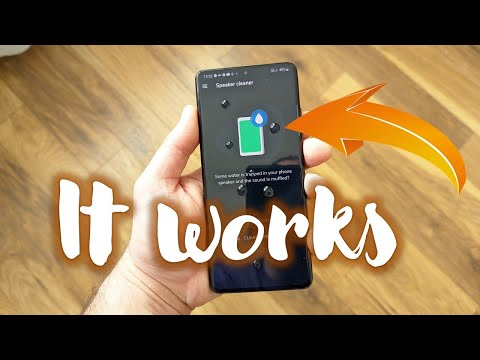
Fix My Speaker tools are becoming increasingly popular for users experiencing muffled or distorted audio from their device speakers. Designed to improve sound quality by emitting specific sound frequencies, these tools aim to clear out dust, water, and other particles trapped within the speaker grills. While these tools are often effective for minor audio issues, many users worry that using them might alter or reset their device settings, potentially affecting their personalized configurations. This article will dive into the functionality of the Fix My Speaker tool, focusing on its impact on device settings and whether users need to be concerned about any unintended changes.
For those unfamiliar, Fix My Speaker tools are usually apps or web-based platforms that generate high-frequency sounds or vibrations to dislodge particles from speaker components. This simple mechanism has helped many users address minor sound quality issues without needing complex repairs or professional assistance. Since these tools operate on audio frequencies and don’t require special permissions, they’re generally safe to use and unlikely to access or modify settings like volume, network, or display configurations.
Understanding how the Fix My Speaker tool functions can ease concerns about its impact on device settings. This guide will cover everything you need to know about this tool’s interaction with your device’s configuration and what precautions you can take for safe use. By the end, you’ll have a clear idea of whether or not this tool poses any risk to your personalized settings and how it can be used effectively for maintaining sound quality.
What Is the Fix My Speaker Tool?
The Fix My Speaker tool is relatively simple but effective. It is designed to resolve speaker issues by emitting specific sound frequencies to expel dust and water from speaker grills. This tool, often found as an app or online platform, has become popular for addressing minor speaker problems without needing hardware intervention.
How Does the Fix My Speaker Tool Work?
The Fix My Speaker tool is designed to improve audio quality by removing particles and moisture from your speaker. It does this through a simple but effective method: it emits specific sound frequencies that create vibrations strong enough to dislodge dust and water. Here’s a breakdown of how each function works:
High-Frequency Sound Emission
The tool emits high-pitched sounds that generate small but rapid vibrations in the speaker.
These vibrations shake off tiny particles, like dust and dirt, that may be stuck in the speaker grill.
Since dust buildup can block or distort sound, clearing these particles helps improve clarity and overall sound quality.
Water Ejection
- This feature is handy for devices that have been exposed to water.
- The tool’s vibrations help push residual moisture out of the speaker area, which can prevent muffled sound and potential water damage.
- The process is gentle enough to avoid any harm to the device while still being effective at removing moisture.
Dust Clearing
The tool can be used periodically as a preventive measure, stopping dust from accumulating over time.
Regular use keeps the speaker components free from dust, which can improve performance and prolong the lifespan of your speaker.
Since the tool only uses sound frequencies and doesn’t access any system or software functions, it operates entirely independently of your device’s settings. This separation makes it unlikely to interfere with your configurations, meaning your volume, network, and other settings stay unchanged. It’s a straightforward tool that uses physics, not software, to enhance your speaker’s performance.
Types of Device Settings and Their Importance
Device settings are critical to personalizing and optimizing your experience with a device, whether it’s a smartphone, tablet, or computer. Let’s dive into the importance of each type of setting and how it impacts your daily use:
Audio Settings
Audio settings allow you to adjust sound-related functions like volume levels, sound modes, and equalizer settings. With these controls, you can personalize how audio plays on your device, whether you prefer louder notifications, balanced sound for media, or quieter, vibration-only modes in public spaces. Fine-tuning these settings ensures that sounds are customized to your preferences without disturbing others or compromising sound quality.
Display Settings
Display settings manage the visual aspects of your device, such as brightness, resolution, and sleep timers. Adjusting these settings allows you to control screen brightness based on ambient light conditions, optimize battery life, and prevent screen burn-in. It also helps reduce eye strain, mainly if you frequently use your device in low-light settings. Personalizing display settings enhances the visual experience while making it more comfortable and efficient.
Network Settings
Network settings include Wi-Fi, Bluetooth, and mobile data options, which are essential for connectivity. Customizing these settings ensures that you remain connected when needed and save battery when not actively using certain connections. For example, turning off Wi-Fi when you’re on mobile data helps conserve data usage, and disabling Bluetooth when not in use reduces the risk of unauthorized connections. Properly managed network settings allow you to stay connected securely and efficiently.
App Settings
App settings give you control over how individual applications behave on your device. They allow you to set permissions, manage notifications, and monitor app usage, which is crucial for privacy, data management, and productivity. For example, you can control which apps have access to your location, microphone, or camera, enhancing security and privacy. Notification management also ensures that only essential alerts interrupt you, making it easier to focus on tasks.
Security Settings
Security settings protect device access by requiring passwords, PINs, or biometric methods like fingerprint or face recognition. These settings are essential for protecting personal information and preventing unauthorized access. By keeping these features activated and regularly updated, users can protect their devices from potential breaches, ensuring that sensitive data remains secure.
Preserving these configurations is vital because they cater to each user’s unique needs, balancing usability, security, and personal preferences. The assurance that tools like the Fix My Speaker tool won’t interfere with these essential settings allows users to address specific issues—like sound quality—without worrying about the impact on other settings or their overall experience.
Does the Fix My Speaker Tool Access Device Settings?
The Fix My Speaker tool is an app designed solely to emit specific sound frequencies aimed at dislodging dust or moisture from a device’s speaker. Because it is audio-based, it does not interact with any other part of the device’s system or settings. Unlike apps that may request permissions to access various aspects of your device, the Fix My Speaker tool does not need or request access to any device settings or configurations to function.
Here’s how it stays separate from system settings:
- No Access to Security Settings: The tool doesn’t interact with or alter your security settings. It will not change your passwords, adjust lock screen configurations, or interact with biometric settings like fingerprint or face recognition.
- No Access to Network Settings: The Fix My Speaker tool doesn’t impact network-related configurations such as Wi-Fi, Bluetooth, or mobile data. Its function is independent of internet connectivity or any network settings.
- No Access to Display or Audio Settings: The tool operates solely through sound frequency emission. It doesn’t adjust your device’s display settings (brightness, sleep timer) or audio configurations like volume levels or equalizer settings. Any temporary sound changes are only part of the cleaning process and are not saved as adjustments to your audio settings.
The Fix My Speaker tool is designed to work without needing system permissions or access. It focuses only on audio output to clean speakers. This design choice ensures that it doesn’t interact with or modify any other device settings, making it safe and isolated from the rest of your system’s configuration.
Will the Fix My Speaker Tool Erase My Settings?
No, the Fix My Speaker tool will not erase or alter any settings on your device. Here’s a breakdown of why it’s safe to use:
- How It Works: The tool uses sound frequencies to create vibrations that push out dust, water, or other debris from the speaker grill. It operates solely through audio, so it doesn’t interact with or require access to any system or user settings on your device.
- Temporary Sound Changes: While the tool may briefly adjust the sound frequency to maximize its effectiveness in dislodging particles, this adjustment is only temporary. Your default sound settings—like volume and equalizer adjustments—remain unchanged once the process is complete.
- Independent Operation: The tool doesn’t access any part of your device’s system settings, such as audio configurations, security settings, or any saved personal preferences. It works independently from these settings, so there’s no risk of it accidentally modifying or erasing any data or customized settings.
- Isolated Design: The tool is specifically designed to be a simple, isolated solution for speaker maintenance. Its isolated functionality ensures it won’t impact other aspects of your device, making it safe for regular use without worrying about resetting or altering your settings.
The Fix My Speaker tool is a convenient solution that safely addresses speaker issues without affecting your device’s configurations or personal settings.
Safety Tips for Using Fix My Speaker
Using the Fix My Speaker tool is generally safe, but following these best practices can help ensure that your experience is as risk-free as possible. Here’s how each safety tip protects your device:
- Use Only Verified Apps: Downloading the tool from trusted sources, like official app stores (e.g., Google Play or Apple App Store), reduces the risk of malware or poor-quality versions of the tool. Verified apps are typically more reliable and have undergone basic security checks by the app store, helping protect your device from malicious software or unintended bugs.
- Volume Control: Keeping the volume at a moderate level prevents your speakers from experiencing strain or damage. High volumes, especially at specific frequencies, can put unnecessary stress on the delicate components within the speaker. Running the Fix My Speaker tool at a safe volume level helps maintain sound quality and prolongs speaker life.
- Avoid Excessive Use: Using the tool too frequently can lead to wear and tear on your speaker. Since the tool relies on sound vibrations to dislodge dust and water, frequent or prolonged use may place unnecessary pressure on speaker components. Limiting use to when it’s essential will keep your speakers in optimal condition.
- Monitor Speaker Temperature: Extended or repeated use of high-frequency sounds may cause the speaker area to heat up slightly. Allowing your device to cool down if you notice it getting warm will prevent potential damage from overheating. This precaution is essential if your device is sensitive to heat.
When to Seek Professional Help
When it comes to persistent or severe speaker issues, DIY tools like the Fix My Speaker tool might not be enough. In these situations, seeking professional help is a wise choice to prevent further damage. Here’s a closer look at when you might need expert assistance:
Permanent Sound Distortion
If you notice that your speaker’s sound is permanently distorted — even after several attempts with the Fix My Speaker tool — this could indicate an underlying issue that sound frequencies alone can’t fix. The distortion that doesn’t improve may stem from internal speaker damage, such as a torn speaker diaphragm or a damaged voice coil. A professional can diagnose the problem, determine if the hardware needs repair or replacement, and restore sound quality effectively.
Internal Hardware Damage
Speakers are sensitive pieces of hardware, and physical impacts, falls, or heavy pressure can cause internal damage that affects sound quality. If you suspect electronic malfunctions or physical damage within the speaker components, it’s best to consult a repair specialist. Professionals can disassemble and inspect the hardware, checking for loose connections, damaged wires, or other physical faults that might be affecting your speaker’s performance.
Persistent Water Damage
While the Fix My Speaker tool can help expel small amounts of moisture, persistent water trapped inside a device requires more extensive intervention. If your device was heavily exposed to water — for instance, from submersion or heavy spills — it’s essential to consult a professional. Prolonged moisture can cause corrosion or short circuits in electronic components, which might worsen over time. A professional can properly dry, clean, and inspect the internal parts to prevent long-term damage.
Conclusion
The Fix My Speaker tool offers a quick and accessible way to address minor speaker issues without affecting your device’s settings. Since it only emits sound frequencies to clear dust and water, it doesn’t need access to any configurations, leaving your settings intact.